Notifications Hub
The top bar of the Loc.ai Control dashboard has been simplified. The separate Deployments (rocket), Uploads (cloud), and Notifications (bell) icons are now combined into a single notifications bell — one place for your alerts, active uploads, and deployment activity.
Opening the hub
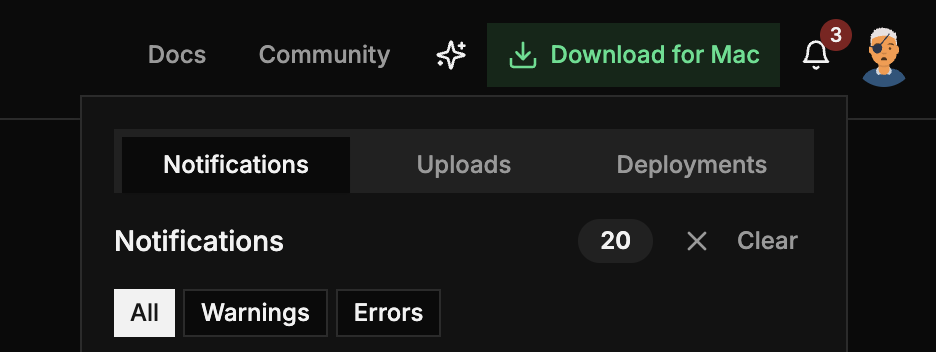
Click the bell icon in the top bar to open the Notifications Hub. When there is something to attend to, a badge appears on the bell:
- Red badge — you have one or more unread alerts. Alerts always take priority over other activity.
- Neutral badge — there are active uploads or deployments in progress. The number is the combined count of active uploads and deployments, and displays as 9+ once it goes past nine.
The hub opens to the tab most relevant to that badge: an alert opens the Notifications tab; otherwise it opens whichever of Uploads or Deployments is currently active.
Tabs
The hub has up to three tabs:
| Tab | What it shows |
|---|---|
| Notifications | Your alerts and platform notifications |
| Uploads | Progress and status of active or recent model uploads |
| Deployments | Your model deployments across every device, with live download progress and a Cancel option on active rows |
The Deployments tab is the same tracker described in Track Your Deployments.
Switching theme (light / dark)
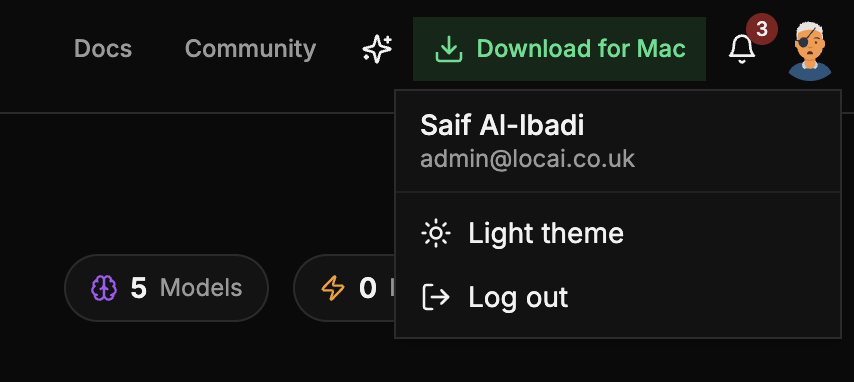
The light/dark theme toggle has moved out of the top bar and into your account menu. Click your avatar in the top-right corner and choose the theme option. It works exactly as before — only its location has changed.
Accessibility
The bell has a screen-reader label that announces the current count (for example, "Notifications, 2 alerts"). The small numeric badge is decorative and hidden from assistive technology, so the count is not announced twice. Every top-bar control has a tooltip.