3. Register a Device
After signing in to the platform the next step is to register a device. Registering a device installs the Loc.ai:Link agent on your target machine and connects it to your Control platform account. Once registered, the device will appear in your dashboard, receive model deployments, and report telemetry and inference results.
If you are setting up a new account, the Setup Wizard walks you through picking a platform, installing the agent, and deploying a model in one place. The manual steps below are always available, and you can add more devices this way at any time.
Two ways to register
Open Register Device (from the dashboard or the Devices page) and the dialog offers two clear choices:
- Desktop app — for a Mac you sit in front of. Download the Loc.ai:Link app; you sign in from the app and no registration key is needed. See Install on macOS for the full walkthrough.
- Headless — for a server, a Raspberry Pi, or any machine without a screen. A one-line install, then a one-time registration key. The key is the only credential involved — no device name, no email, and no password typed on the device.
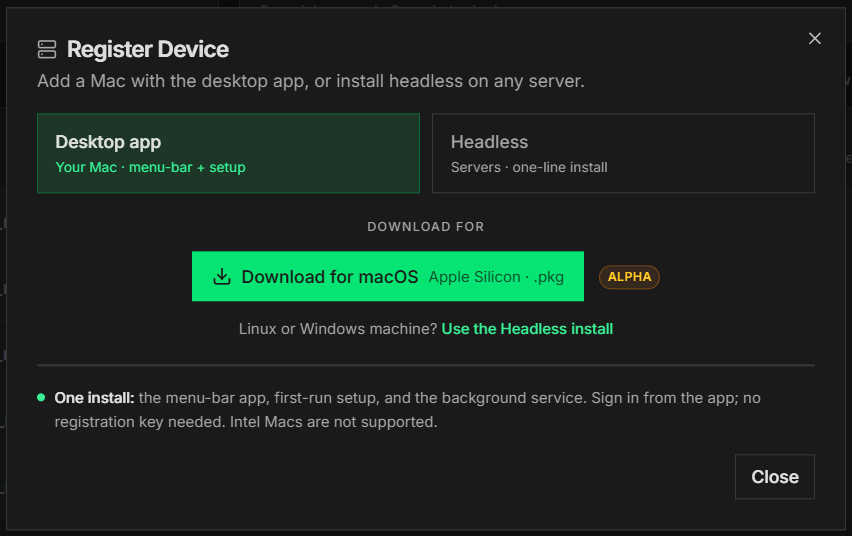
Step 1: From the dashboard, click Register Device button to add a new device and connect it to the Loc.ai platform.
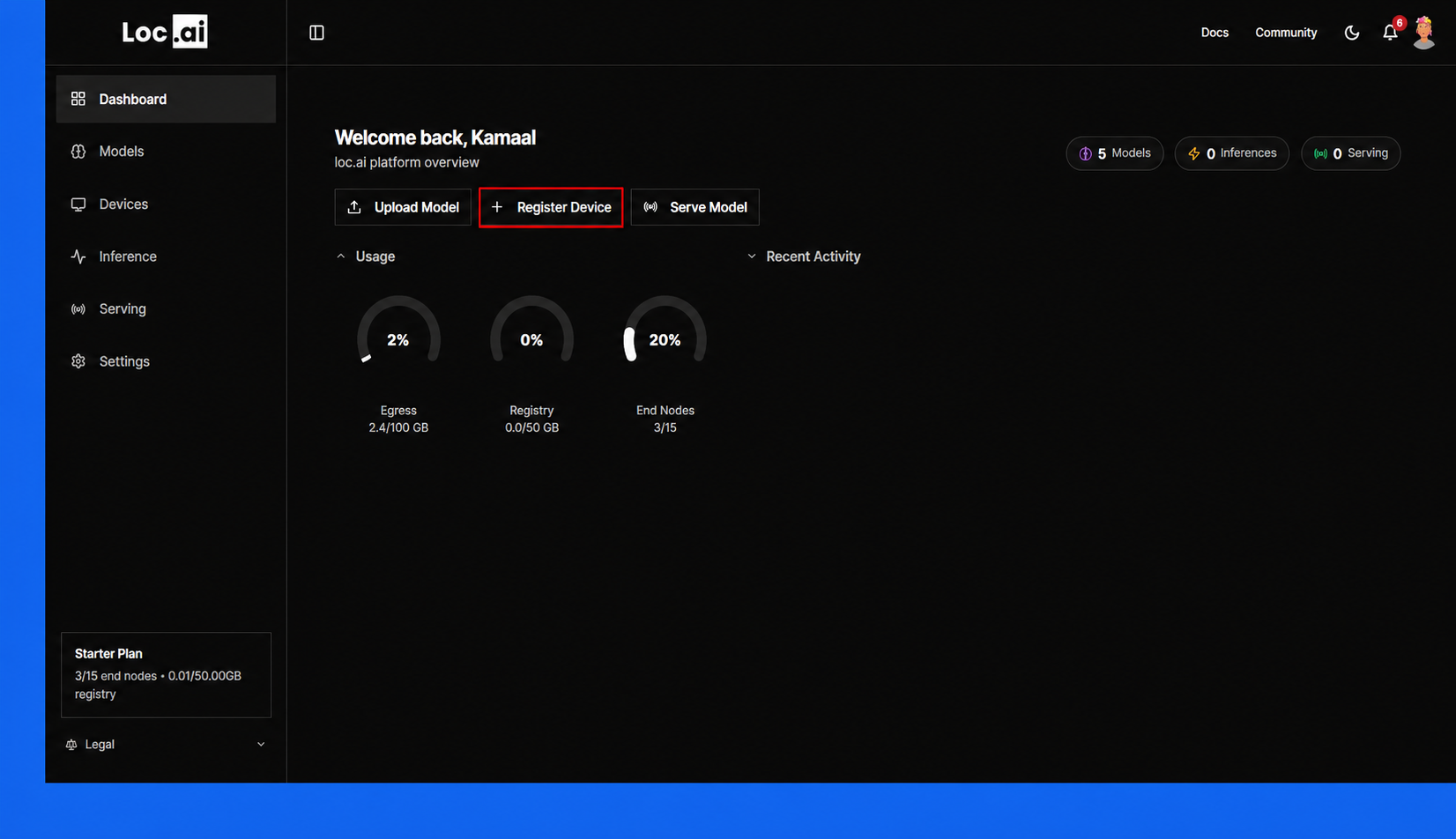
Step 2: On the Devices page, click + Register Device button to start adding a new device to the platform.
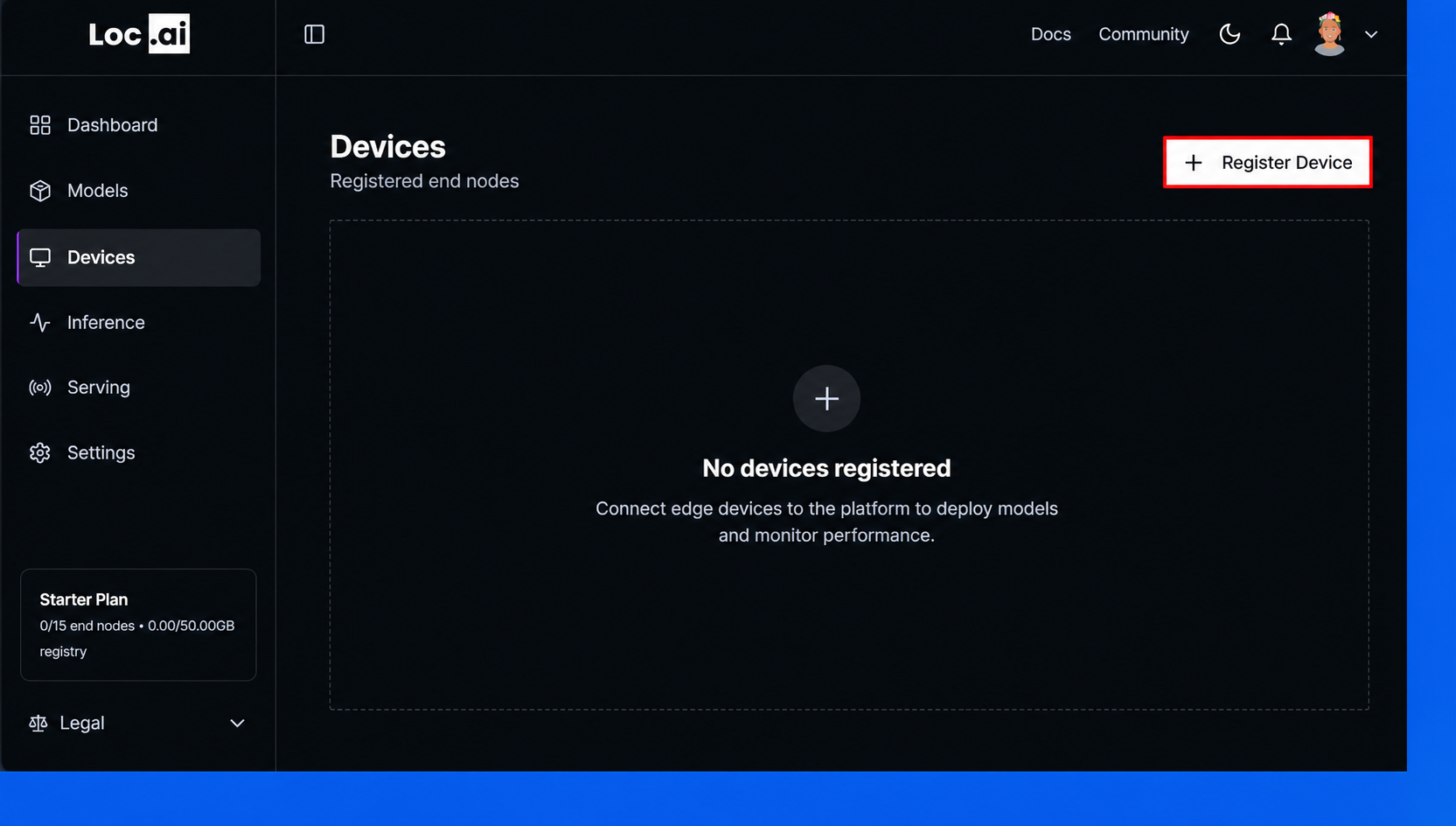
Register a headless device
Step 3: In the dialog, choose Headless, then pick the tab for the device's operating system: macOS, Linux, or Windows.
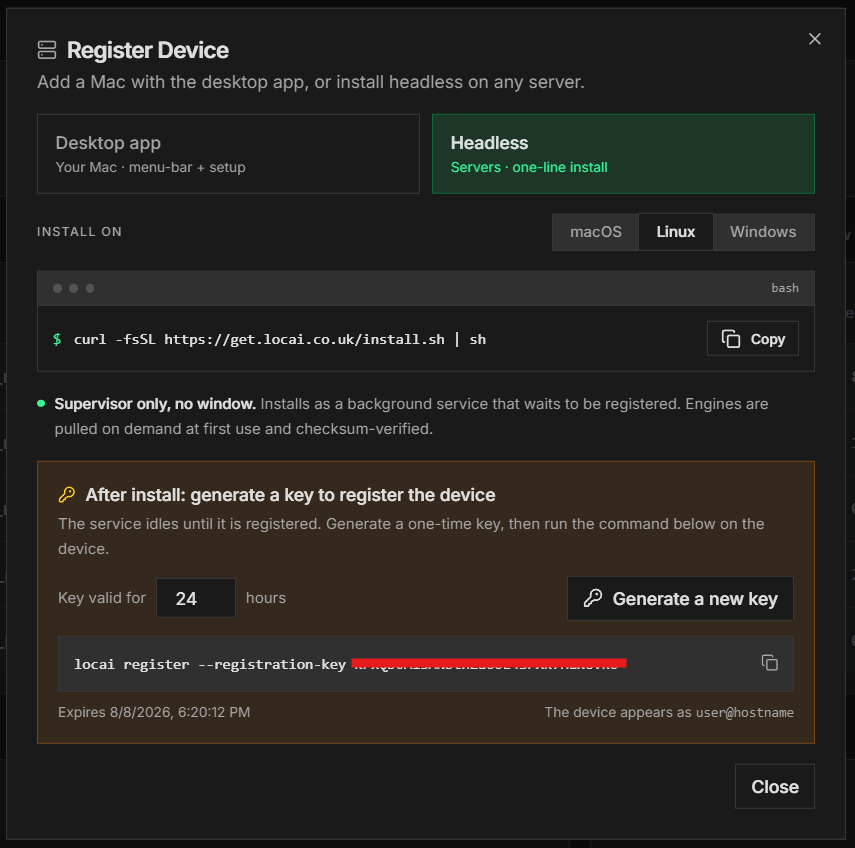
Step 4: Copy the install command and run it on the device you are registering (not your local machine). The command is the same for everyone and carries no key or credentials, so it is safe to share in provisioning scripts.
- Linux / macOS
- Windows (PowerShell)
curl -fsSL https://get.locai.co.uk/install.sh | sh
irm https://get.locai.co.uk/install.ps1 | iex
The installer downloads the headless build, verifies it against the release checksums, and installs it per-user — no admin rights are needed on any platform. It sets the background service to start at login or boot, puts the locai command on the PATH, and then idles, waiting to be registered. Inference engines are not bundled; the device fetches just the engine it needs, checksum-verified, when a model is first deployed.
Headless Windows installs run in PowerShell. The previous Command Prompt (CMD) install path has been retired.
Copy the command from the dialog and run it as-is. It is not a template with values to fill in — there is nothing in it to edit.
Step 5: Back in the dialog, set how long the key should be valid (1 to 168 hours, 24 by default) and click Generate a new key.
Step 6: Copy the register command shown under the key and run it on the device:
locai register --registration-key YOUR_REG_KEY
The device registers immediately and appears in your dashboard named user@hostname — after the OS account and machine it is running on — showing Pending until its agent reports in, then Online.
Three things worth knowing
- You do not name the device and you do not sign in on the device. The registration key is the only credential. The device names itself after the account and machine it runs on, so the name in your dashboard always matches the machine in front of you.
- A key is single-use and tied to the first machine that redeems it. Generate one key per device.
- Re-running the same command on the same machine is safe. It refreshes that device's credentials instead of creating a duplicate. Running it on a different machine is rejected.
A device that stays Pending for more than a minute or two is usually a blocked connection rather than a failed registration — most often a firewall blocking outbound port 7448. See Troubleshooting for how to confirm and fix it.
Unattended installs
For provisioning scripts and fleets, set the key in the environment before running the install command and the device registers itself in one step — keys are read from the environment only, never passed on a command line:
LOCAI_REGISTRATION_KEY=YOUR_REG_KEY curl -fsSL https://get.locai.co.uk/install.sh | sh
Organisations enrolled in fleet management use a fleet key the same way (LOCAI_FLEET_KEY, or locai register --fleet-key); see Enrolling devices with a fleet key.
Managing the device from the terminal
The locai command works identically on desktop and headless installs, on every platform:
| Command | Purpose |
|---|---|
locai status | Show registration, service, and update status. |
locai start / locai stop / locai restart | Control the background service. |
locai update | Update to the latest version. |
locai uninstall | Deregister from Control, remove the service and every installed file. |
Service logs live in logs/service.log under the install root on macOS and Windows; on Linux the headless service logs to the systemd journal (journalctl --user -u locai-link-headless.service).
Register a Mac with the desktop app
Choose Desktop app in the dialog and click Download for macOS (Apple Silicon, .pkg). One install covers the menu-bar app, first-run setup, and the background service: you sign in from the app itself, so there is no registration key to generate. Intel Macs are not supported by the desktop app — use the headless install instead.
See Install on macOS for the full walkthrough.
Verify the device is connected
Open the Devices page: your device should appear in the list, showing Pending while it starts up and Online once its agent has reported in.
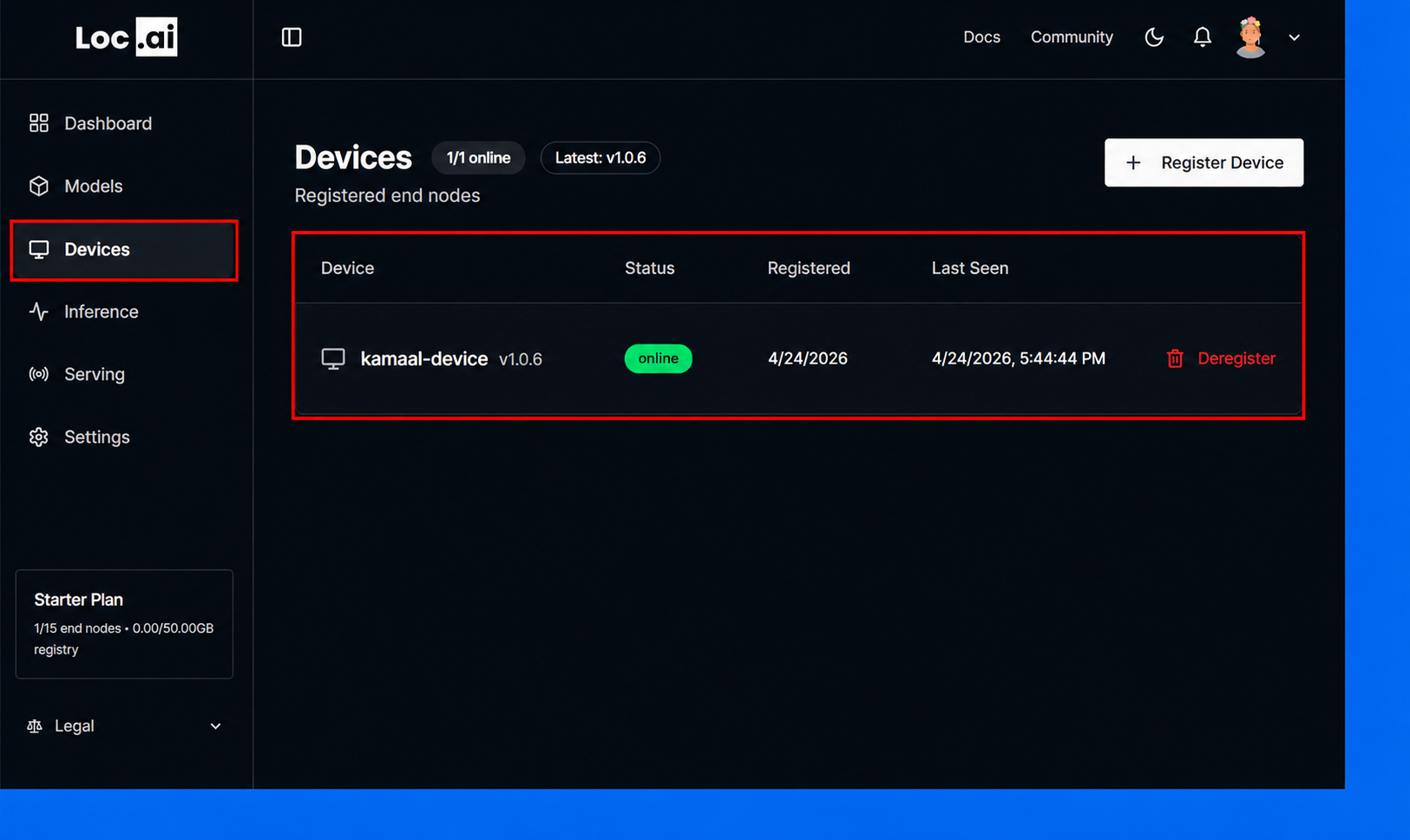
Now you can deploy a model.
Running Loc.ai:Link from a source checkout is a development workflow, not an install path: clone locai-co-uk/locai-link and use uv per the repository README. Field and headless devices should always use the pre-built releases above.
Deregistering a Device
When you uninstall Locai Link from a device, Link automatically deregisters that device from Locai Control. You no longer need to manually remove devices from your Control dashboard after uninstalling: the device entry, its installed models, and its subscription slot are all cleaned up for you.
What happens when you uninstall Locai Link
- Model records are cleared. Any models that Link has already removed locally are reported to Control and removed from that device's model list.
- The device is deregistered. The device record is deleted from Control, freeing its slot in your subscription and updating your organisation's device count.
- Analytics are updated. Your total device count in Control reflects the removal immediately.
No action is required from you. If you open Control after uninstalling Link from a device, that device will no longer appear in your device list. Deregistration requires a connection to Control; if the device is offline at uninstall time, the entry may persist temporarily and you can remove it manually as below.
Manual deregistration (admin-initiated)
Administrators can still deregister a device manually from the Control dashboard at any time, for example if a device was wiped or is no longer reachable. The outcome is the same: the device record is removed and the subscription slot is freed.
- Sign in to Locai Control.
- Navigate to Devices in the left sidebar.
- Find the device you want to remove and click Deregister on its row.
- Confirm the action in the dialog that appears.
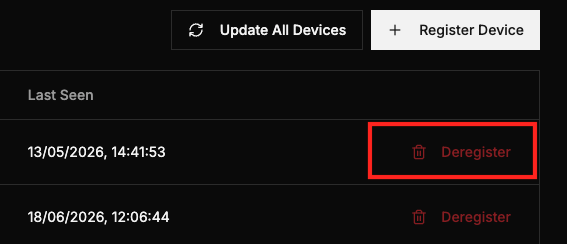
The device is removed and its subscription slot is freed immediately.
Safe to retry
If an uninstall is interrupted and the deregistration request is sent more than once, Control handles it gracefully: a repeated report for a model that is already absent is ignored safely, and a repeated deregistration for a device that has already been removed is treated by Link as confirmation that it already succeeded. You do not need to worry about stale or duplicate device entries resulting from a failed or retried uninstall.
Subscription slot and device count
When a device is deregistered, whether by uninstalling Link or by an admin action in Control, its subscription slot is released immediately. Your organisation's device count decreases accordingly. If you are on a solo plan, the single device slot becomes available for a new device straight away.
Frequently asked questions
Will my models be redeployed if I reinstall Link on the same device? After deregistration, the device has no record in Control. If you reinstall Link, it registers as a new device. You can then deploy models to it from the Control dashboard as normal.
What if I uninstall Link without an internet connection? Deregistration requires a connection to Control. If Link cannot reach Control at uninstall time, the device record may persist in your dashboard temporarily. You can remove it manually from the Devices page in Control.
Does deregistration delete my models from disk? No. Deregistration removes the device and model records from Control only. Any model files already downloaded to the device's local storage are managed by the Link uninstaller, not by Control.