Getting Started with Workspace
Workspace is a new product available at workspace.locai.co.uk that lets employees interact directly with AI models running on Locai, entirely on your organisation's own infrastructure. No data leaves your device or network, making it suitable for sensitive documents and confidential conversations.
At launch, Workspace supports language models with two core capabilities:
- Conversations. Chat with a language model in a familiar message interface.
- Document Analysis. Upload documents and ask questions about their contents.
Accessing Workspace
- Open a browser and navigate to workspace.locai.co.uk.
- Sign in with your existing Locai credentials.
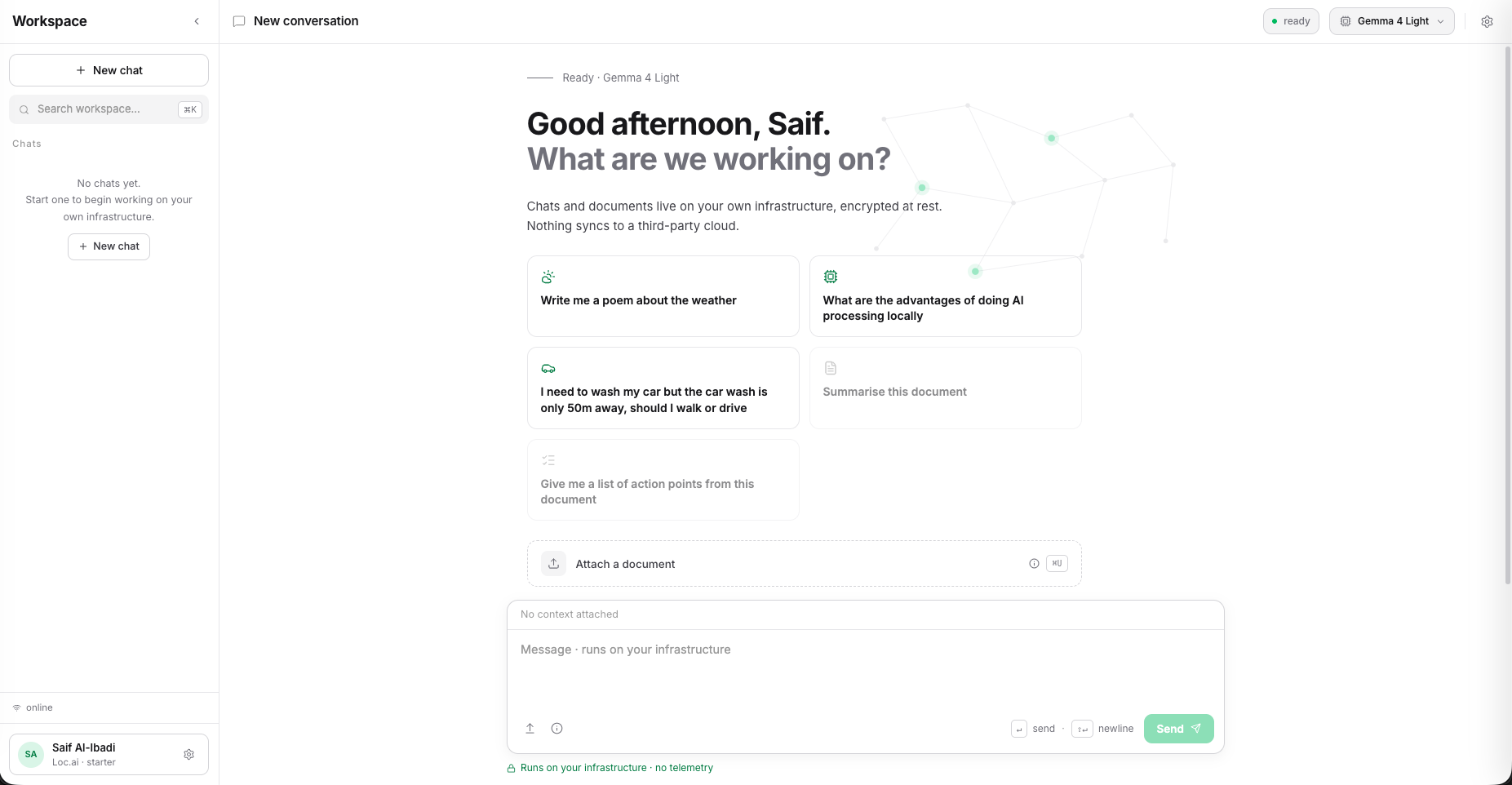
- You will land on the Workspace home screen, where you can start chatting straight away, pick a suggested prompt, or attach a document to analyse. The model in use (and its ready state) is shown at the top right.
Workspace is designed to operate fully offline. If your organisation has disabled internet access on its network, Workspace will continue to function normally; all models run locally on Locai hardware.
Conversations
Conversations let you chat with a language model running on your Locai instance.
Starting a conversation
- Click New chat (or simply type in the message field on the home screen).
- Type your message and press Send (or hit Enter).
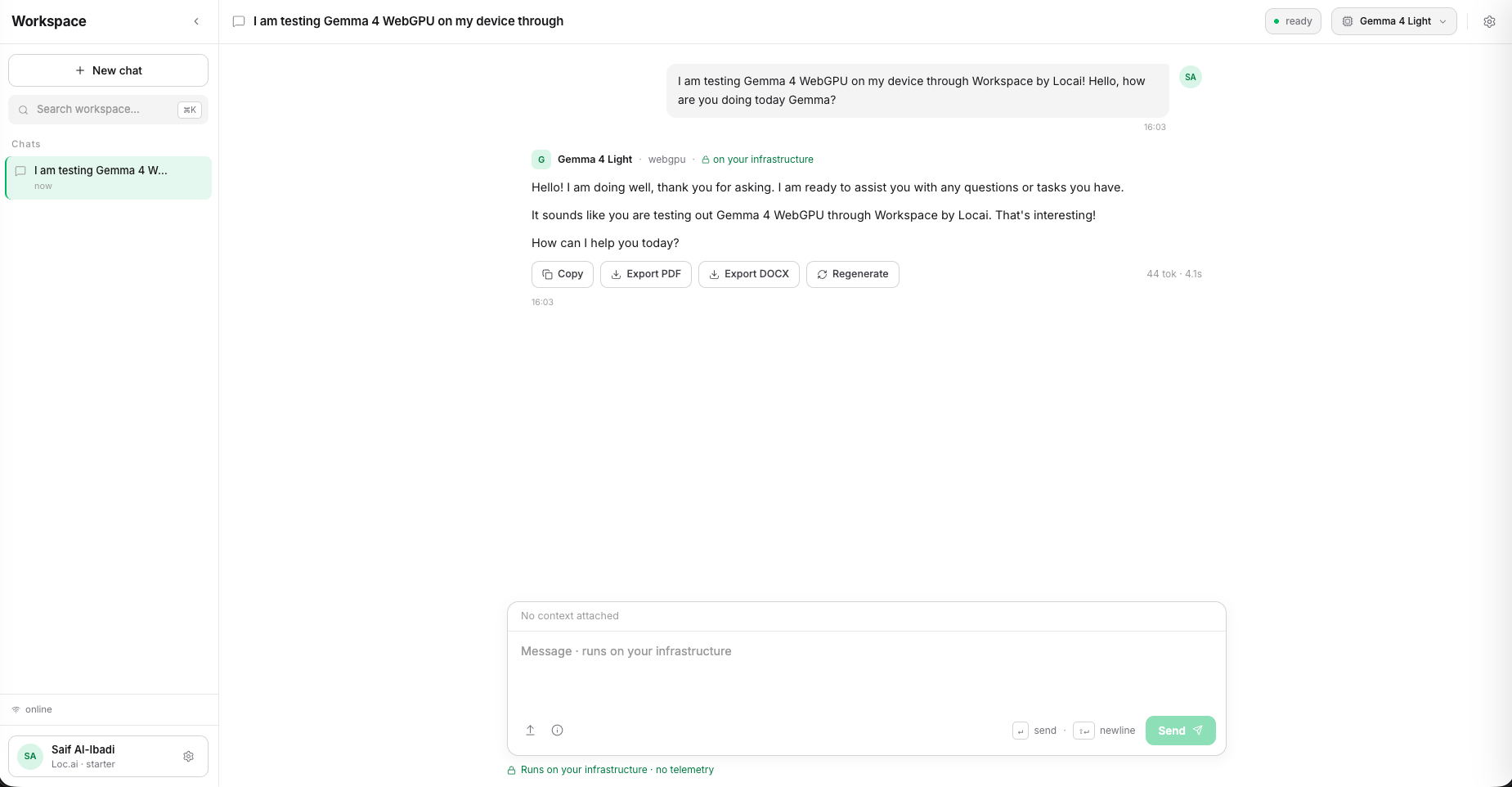
- The model's response will appear in the thread above.
- Continue the exchange as you would in any chat interface.
Tips
- You can start a fresh conversation at any time with New chat in the sidebar.
- Previous conversations are saved in the left-hand sidebar, and you can search them from the search field.
- Every response can be copied, exported as PDF or DOCX, or regenerated.
Document Analysis
Document Analysis lets you attach a document to a conversation and ask the language model questions about it: summarisation, key-point extraction, clause checking, and more.
Analysing a document
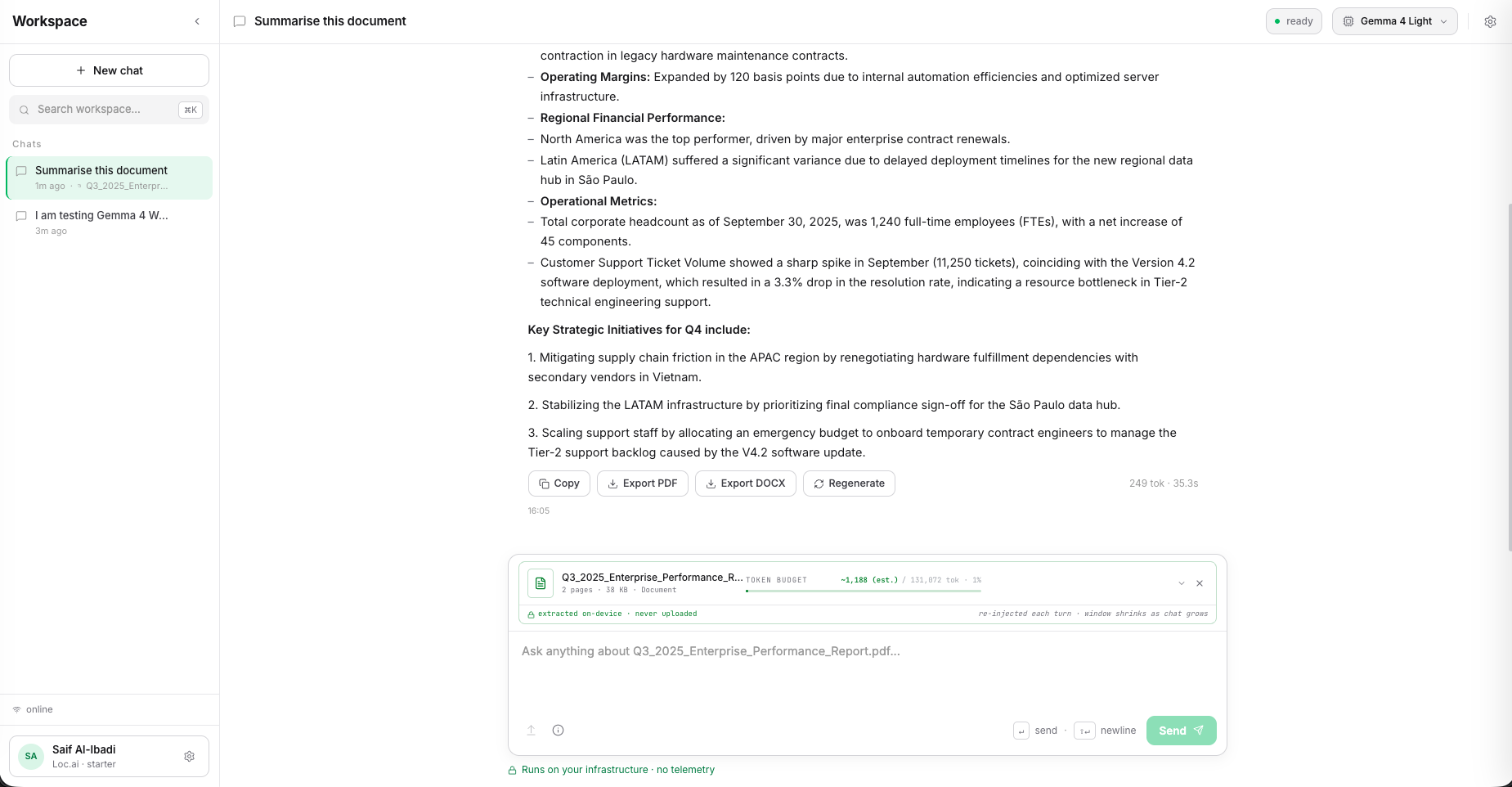
- Click Attach a document (or pick one of the document suggestion cards, such as "Summarise this document") and choose a file from your device.
- The document is processed on your device; the attachment card confirms it is extracted on-device and never uploaded.
- Type your question or instruction in the input field and press Send.
- The model will respond based on the content of your document, and you can keep asking follow-up questions about it in the same conversation.
Supported file types
Common document formats are supported, including PDF and plain text files. Contact your Locai administrator if you need support for additional formats.
Privacy
Documents you upload are processed entirely on your organisation's Locai hardware. They are not transmitted over the internet or stored outside your network.
Data privacy and local operation
Workspace is built for fully local operation. All models run on your organisation's Locai infrastructure, and no data (messages, documents, or results) leaves the device or your internal network. Workspace will work even when internet connectivity is disabled.
What's coming next
Workspace will expand over time to support all Locai models and datasets available on your organisation's Locai instance, giving employees a single place to interact with everything Locai offers.