Preferences Window
Preferences is a separate window that shows everything the tray dropdown does plus more detail. It's opened via Preferences… from the tray menu.
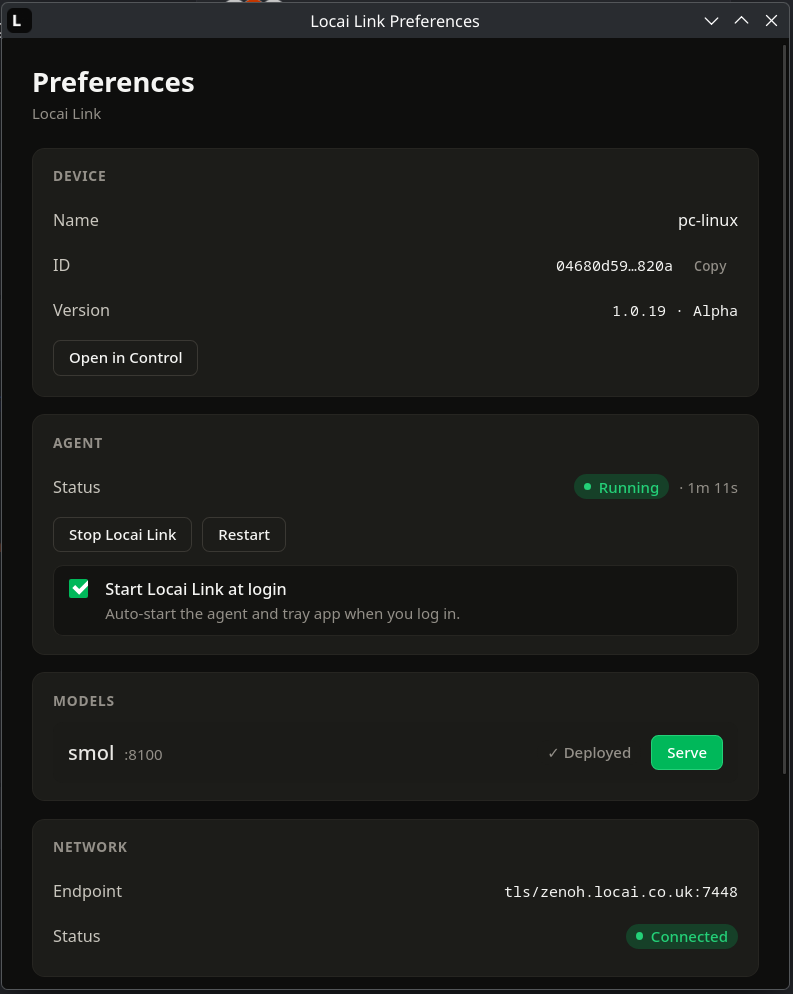
Device panel
- Name. The human-readable name you gave the device during Setup.
- ID. The UUID Locai Control assigned during registration. Click Copy to copy the full ID (useful when reporting issues).
- Version. The runtime version currently installed, e.g.
1.3.0. Pre-release builds append the release channel, for example1.3.0 · Alpha. - Open in Control. Opens this device's page in the Locai Control dashboard.
Agent panel
One place to control the agent:
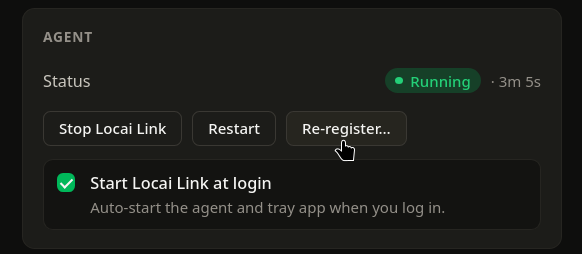
- Status. A green Running pill or a red Stopped pill, plus uptime (
· 3m 5s). - Stop / Restart. Stop the agent, or restart it (useful when troubleshooting). Stopping and restarting shut the runtime down gracefully, so serving models are stopped cleanly.
- Re-register… Move this device to a different account or refresh its credentials; see Re-Registering a Device.
- Start Locai Link at login. A toggle that enables / disables the LaunchAgent (macOS) or systemd user unit (Linux). Turning it off means the agent won't start on your next login until you launch Locai Link manually.
Network panel
Shows the connection status to Locai Control:
- Endpoint. The Zenoh router URL (e.g.
tls/zenoh.locai.co.uk:7448). Zenoh is the messaging protocol Link uses. - Status. Connected (green) or Disconnected (red).
If Network shows Disconnected, the agent can't reach the Zenoh router. Most commonly a firewall blocking outbound TCP 7448; see Troubleshooting.
Models panel
Same list as the tray Models submenu, but with more per-row detail:
- In-flight downloads show a circular progress wheel + percentage + a Cancel button. Clicking Cancel stops the download immediately, cleans up the partial file, and drops the row.
- Deployed models show their alias, port (if serving), a Serve / Stop button, and a Remove action. Removing a serving model stops it first, and the Control dashboard updates to reflect the change; see Removing a model.
- Available to download. Models on your Locai account that aren't yet on this device — both models you own and globally shared models. Click Download on a row to install it directly from here; see Deploying new models.
Advanced
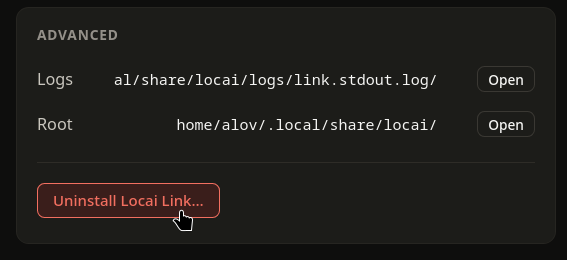
- Logs. Open the log folder directly (log files are named
link.*.log). Useful when troubleshooting. - Root. Open the install root — the path where the runtime lives (
/Library/Locai/on macOS,~/.local/share/locai/on Linux by default). - Uninstall Locai Link… Uninstall in one click, with a confirmation. Uninstalling deregisters the device from Control automatically; cancelling the admin prompt is a clean no-op that leaves everything installed. See Uninstalling.
Closing the Preferences window doesn't quit Locai Link; it stays running in the menu bar.