Using the Companion (Menu-Bar Tray)
Click the Locai icon in your menu bar (macOS) or system tray (Linux) to open the dropdown:
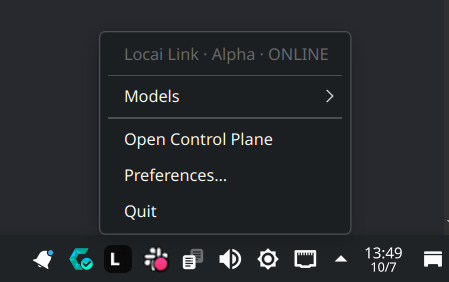
Status header
- Locai Link · ONLINE. Agent is reachable, everything nominal.
- Locai Link · OFFLINE. Agent isn't responding to local health checks. See Troubleshooting.
- Locai Link · Checking… Brief state right after opening the menu; resolves within a second.
- Updating… An automatic update is in progress; model controls are temporarily hidden until it completes. Normal operation resumes automatically.
Hovering the tray icon itself (the icon in the menu bar, not the dropdown row) shows a tooltip: Locai Link · Serving N models when models are actively serving, or just Locai Link when idle.
Pre-release builds include the release channel in the header and tooltip, for example Locai Link · Alpha · ONLINE.
Models submenu
Hover the "Models" row to expand a submenu listing every model deployed on this device:
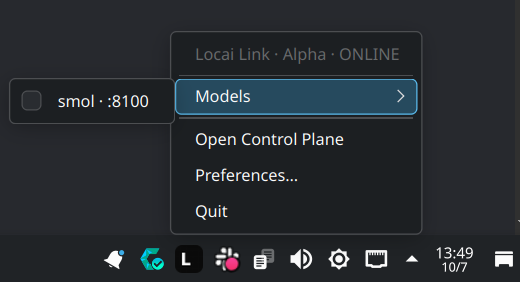
- Downloading rows appear first, with a progress percentage (
Downloading llama-3.1-8b — 42%). - Deployed rows appear below, each as a toggleable checkbox. A checkmark means the model is actively serving requests. Click to start or stop serving:
- No checkmark, click, and the model starts serving.
- Checkmark, click, and the model stops serving.
Toggling is idempotent. Double-clicking or rapid-clicking is safe (an in-flight guard blocks conflicting requests until the previous one completes).
When there are no models installed and none are serving, the submenu shows (no models serving).
Open Control Plane
Opens https://control.locai.co.uk in your default browser. Use this to deploy new models to this device, view device metrics, or manage other devices in your fleet.
Open a Workspace
Opens workspace.locai.co.uk in your default browser, taking you straight to Locai Workspace to chat with your models or analyse documents, all running locally on your Locai devices.
Download models…
Opens the model download list, where you can pull extra models onto this device without opening Control. See Deploying new models.
Preferences…
Opens the detailed Preferences window.
Quit
Quits Locai Link. To bring it back, launch Locai Link from Applications (macOS) or your app launcher (Linux), or run locai start from a terminal. On next login it restarts automatically if Start Locai Link at login is enabled.
Before setup is finished
If you close the first-run setup window before onboarding completes, the menu-bar icon isn't a dead end: its menu offers Continue Setup… (reopen the wizard right where you were) and Uninstall Locai Link… (remove the install cleanly; see Uninstalling).