Re-Registering a Device
If you need to move this device to a different Locai account, refresh its credentials, or start a clean setup for testing, re-register it:
- Open Preferences from the Locai Link menu-bar (tray) menu.
- In the Agent panel, click Re-register….
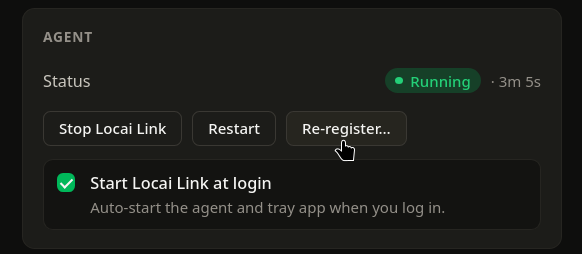
- A confirmation dialog explains what will be removed: local session state, deployed models, and pipeline configs. The old device entry is deleted from Locai Control (best-effort). Confirm.
- Locai Link then reopens its setup window and behaves as a fresh install, following the first-run setup steps: sign in, choose models, permissions, finish.
Model files are removed
Downloaded model files (in /Library/Locai/models/ or ~/.local/share/locai/models/) are removed as part of re-registration. Re-selecting them in the Models step will download them fresh.
Headless devices
On a headless install there is no Preferences window — re-run the register command instead. Re-running locai register --registration-key with a fresh key on the same machine refreshes the device's credentials and re-adopts the same device record, so you don't end up with a duplicate in the dashboard. See Register a Device.