The Fleet Dashboard
Navigate to Fleet Operations → Fleet (or go directly to /fleet) to open the Fleet dashboard.
Health Overview Tiles
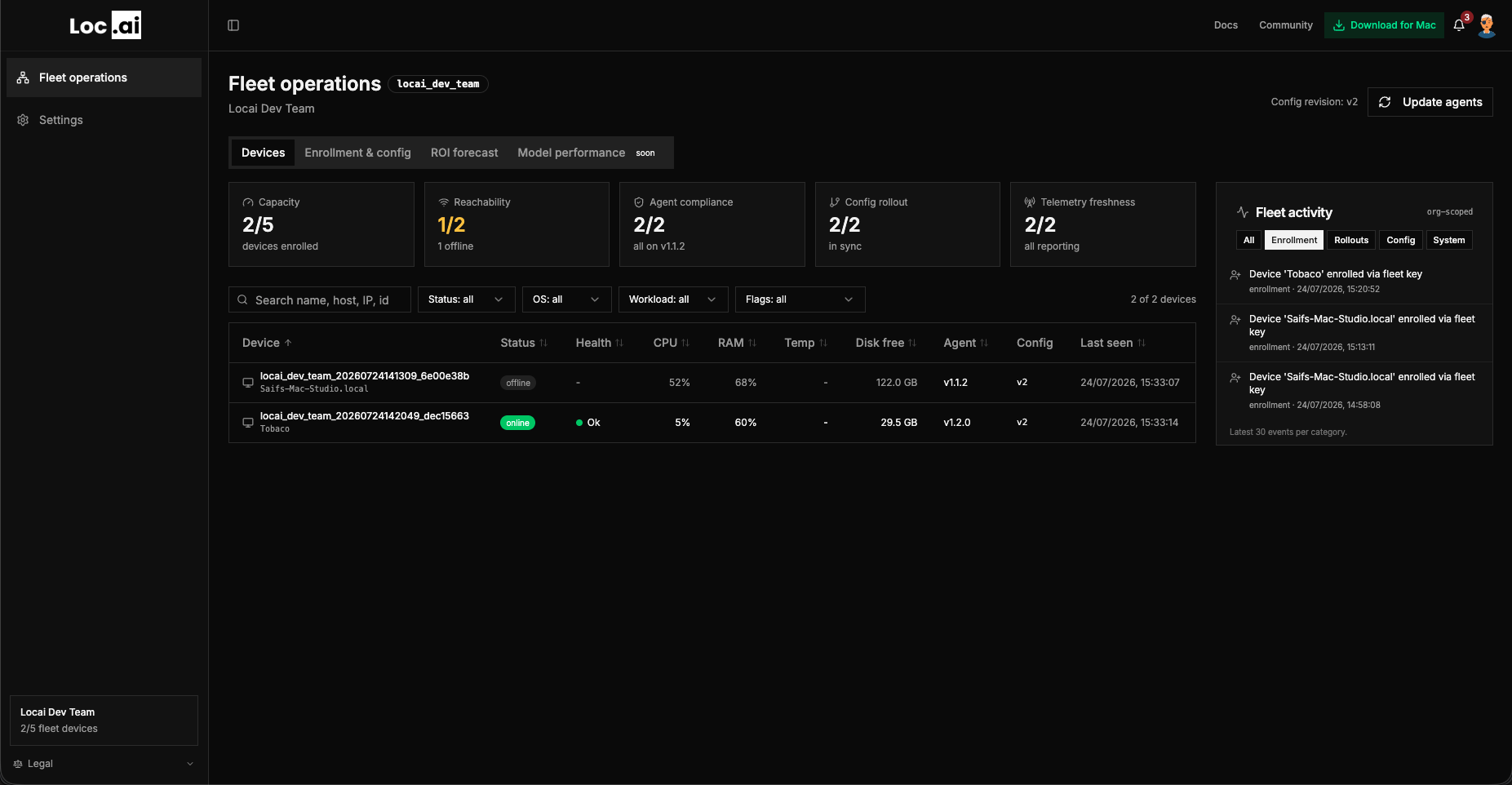
Five tiles at the top of the dashboard give you an at-a-glance view of your fleet's health:
| Tile | What it shows |
|---|---|
| Capacity | Total enrolled devices vs. your org's capacity limit |
| Reachability | Proportion of devices that have checked in recently |
| Agent Compliance | Percentage of devices running the current target agent version |
| Config Rollout | Progress of your active configuration overlay across devices |
| Telemetry Freshness | How recently telemetry data was received across the fleet |
Device Table
Below the tiles, a searchable, faceted device table lists every enrolled device. You can search by device name or ID and filter by status, agent version, or configuration state.
Columns include live health status, agent version, configuration convergence state, and last-seen timestamp.
Alongside the table, a Fleet activity rail lists recent organisation events (enrollment, rollouts, config, and system), filterable by category.
Viewing a Device's Details
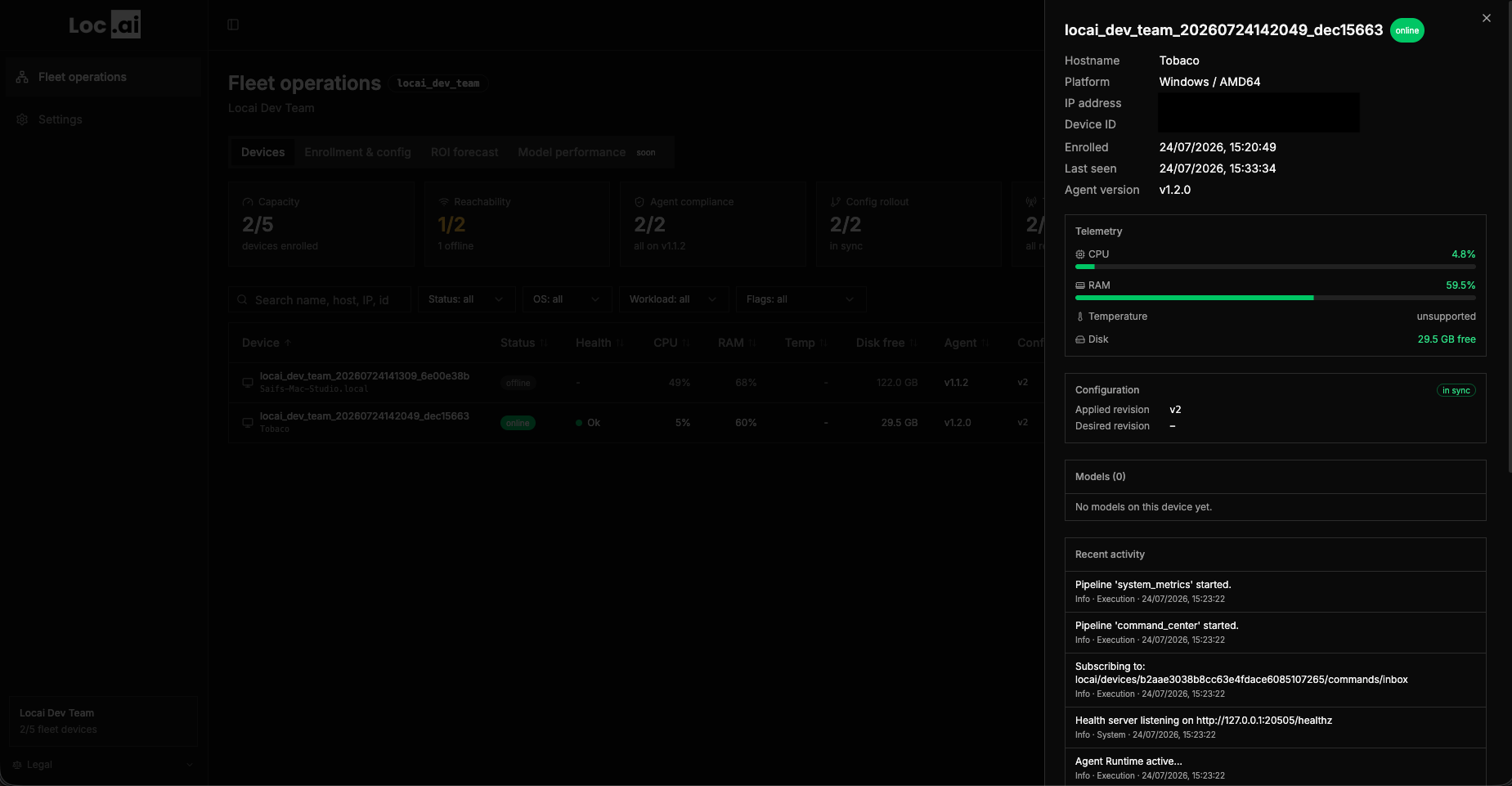
Click any row in the device table to open the Device Detail drawer on the right. The drawer shows:
- Identity. Device name, ID, enrolment date, and assigned ring.
- Telemetry. Live metric bars for the device.
- Config convergence. Whether the device has applied the current configuration (desired vs. applied revision).
- Per-model deploy status. The download and serving state of each assigned model on the device.
- Recent activity. A log of the latest events for this device.
- Retire action. Permanently removes the device from your fleet (see Retiring a Device).
Retiring a Device
Retiring a device permanently removes it from your fleet. This action cannot be undone.
- Open the Device Detail drawer for the device you want to retire.
- Scroll to the bottom and click Retire Device.
- Confirm the action in the dialog that appears.
The device will no longer appear in the fleet table or count toward your capacity.